Why Zed?
Before discovering Zed, I primarily used JetBrains IDEs like PhpStorm and WebStorm. While these IDEs are powerful, they can consume a lot of RAM and CPU. Combined with running other resource-intensive tasks like development servers, my system often slowed down significantly.
Searching for a lightweight, high-performance alternative led me to Zed, a next-generation code editor built in Rust.
Zed is designed for high-performance coding and seamless collaboration with humans and AI, making it a perfect choice for developers seeking speed and efficiency.
Setting Up Kimi K2 in Zed Editor
Integrating AI into your workflow is easier than ever with Kimi K2. Follow these steps to set it up in Zed:
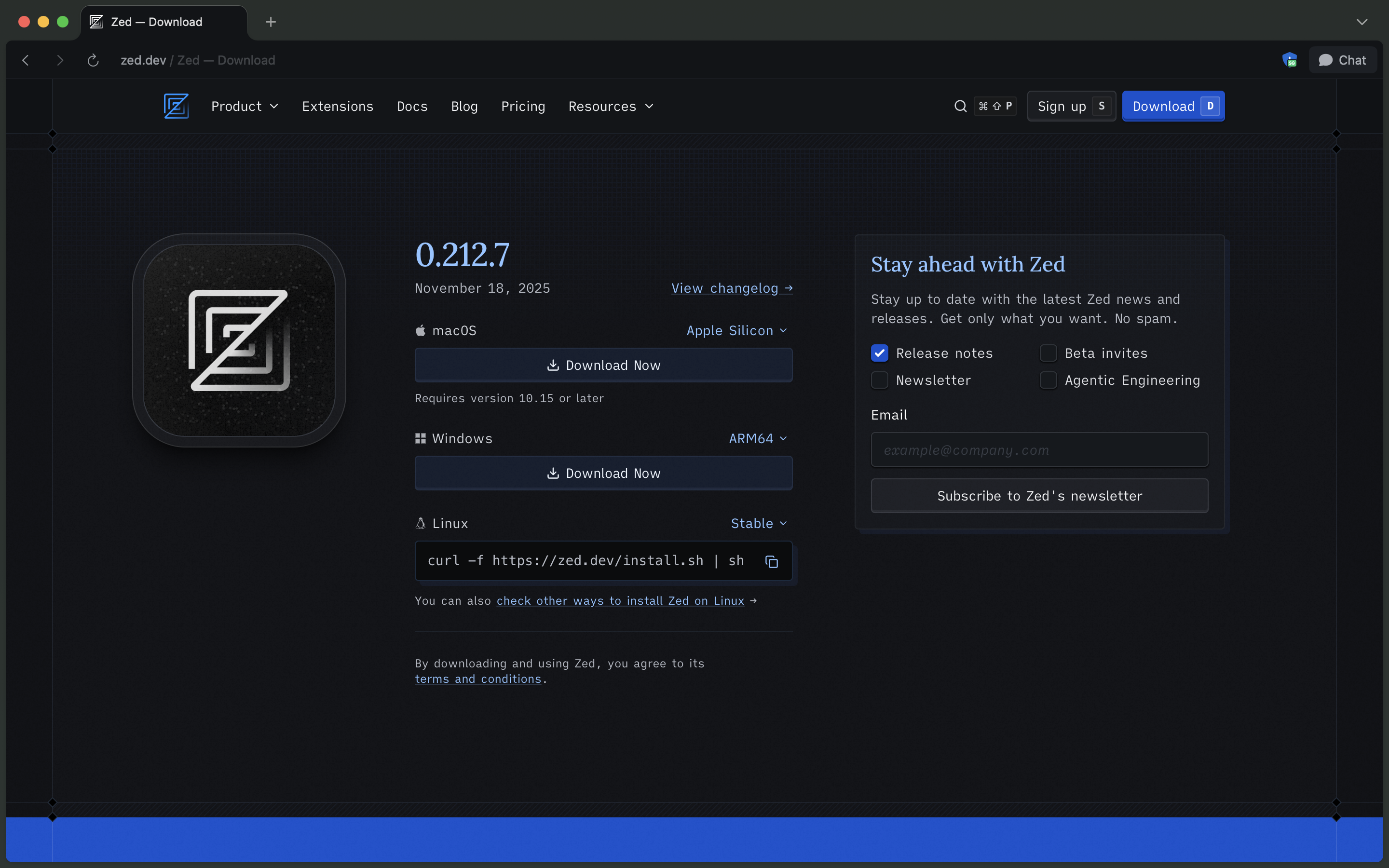
1. Download and Install Zed Editor
Start by downloading and installing the Zed code editor on your machine.
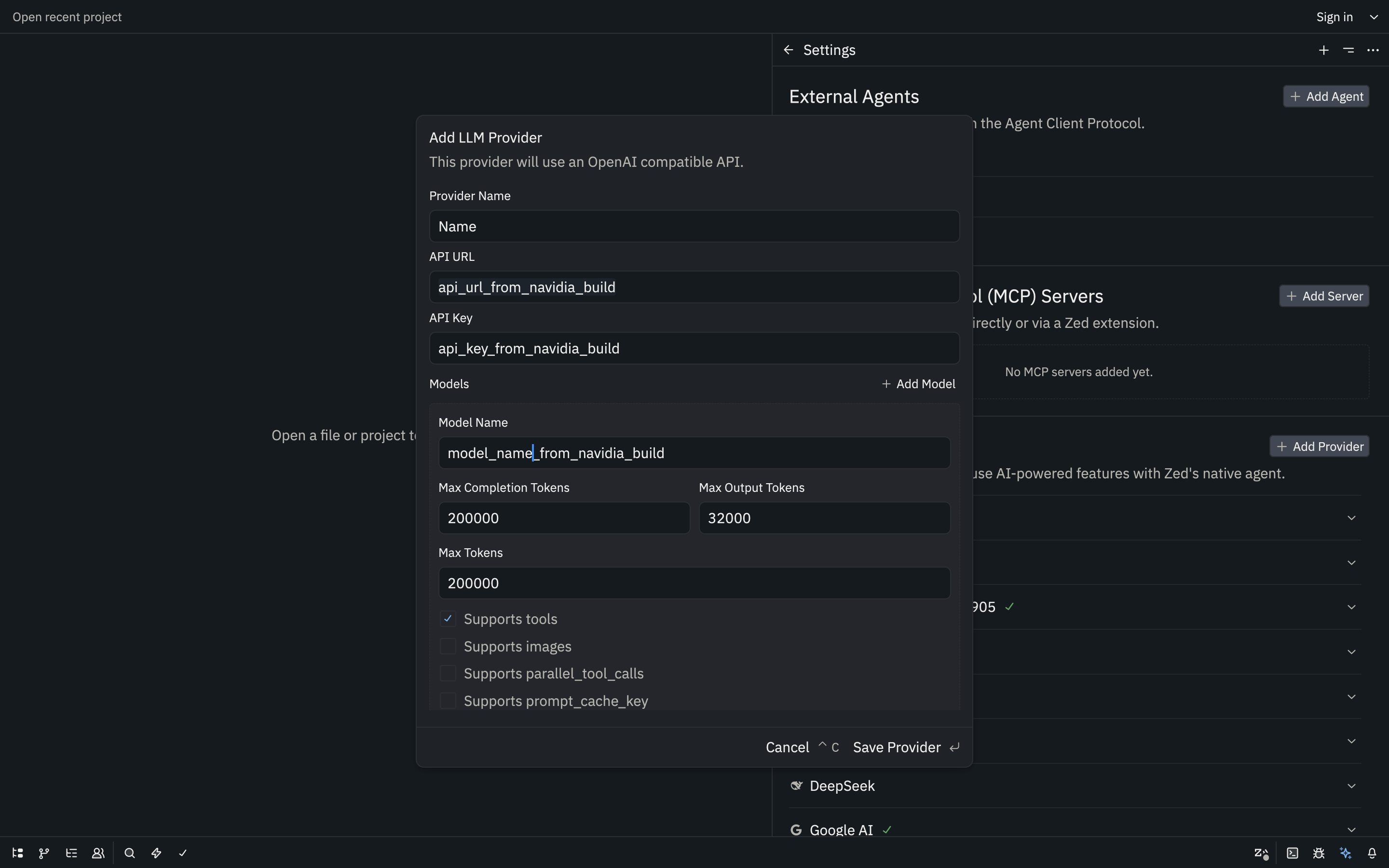
2. Get Your Kimi K2 API Key and URL
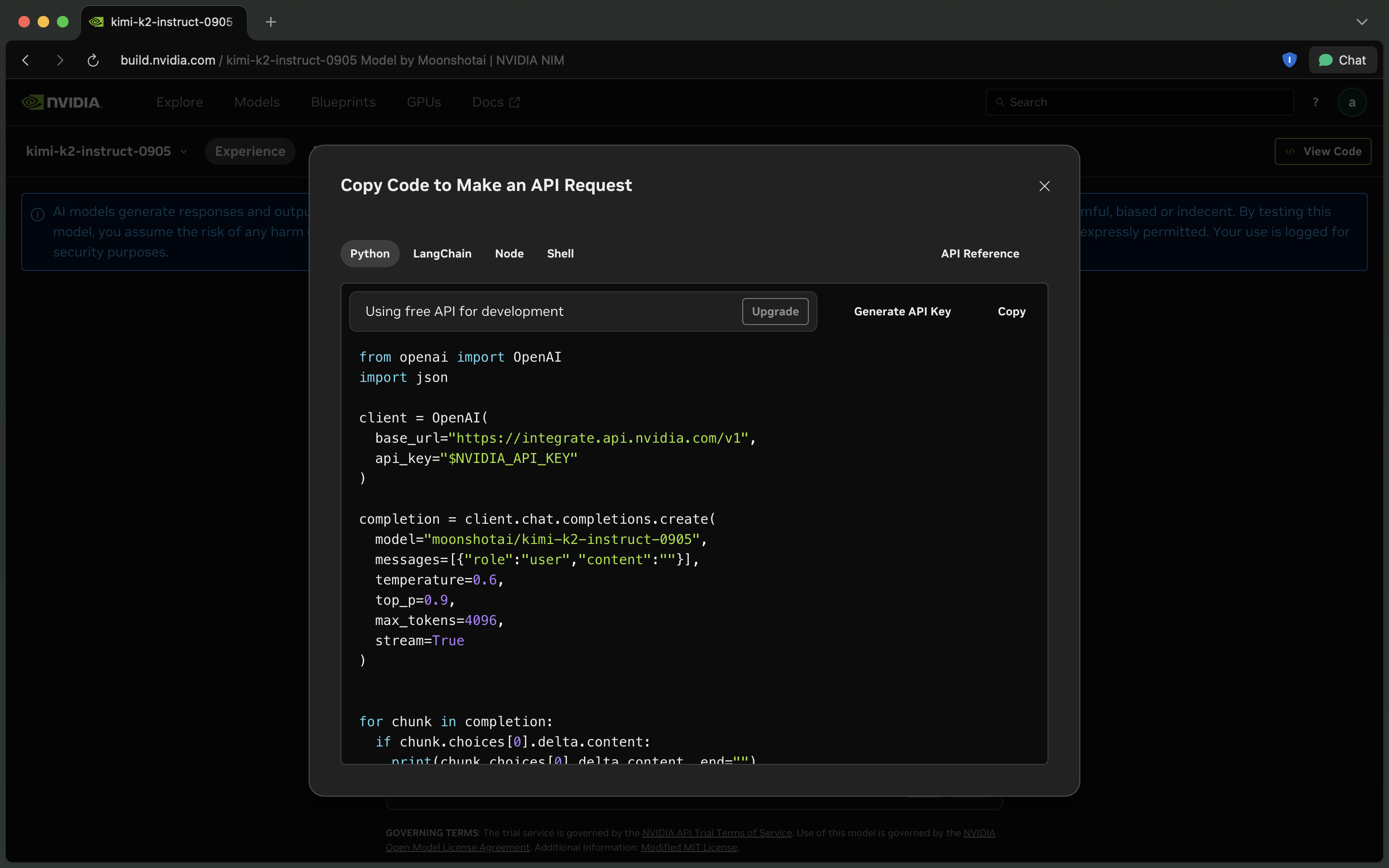
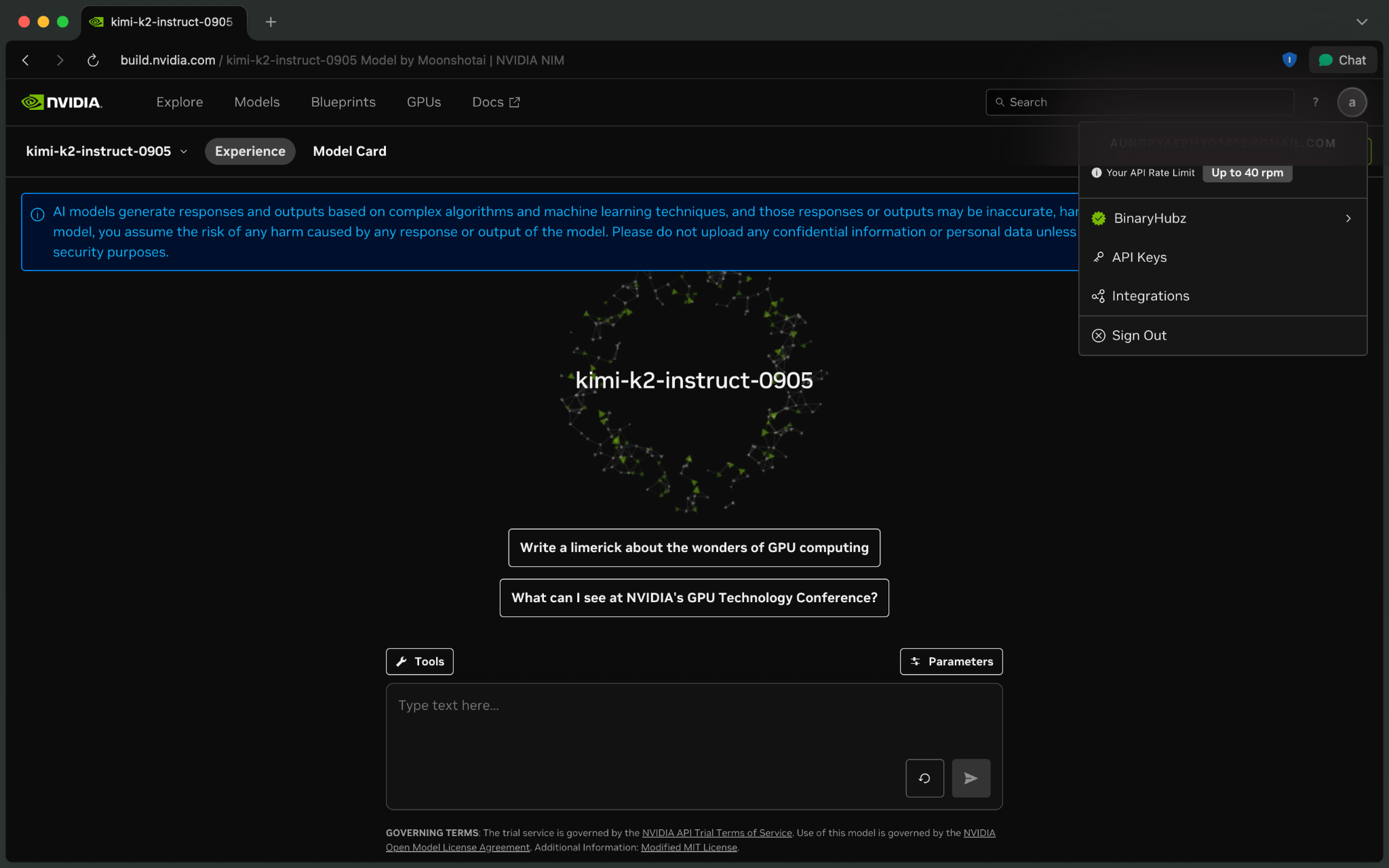
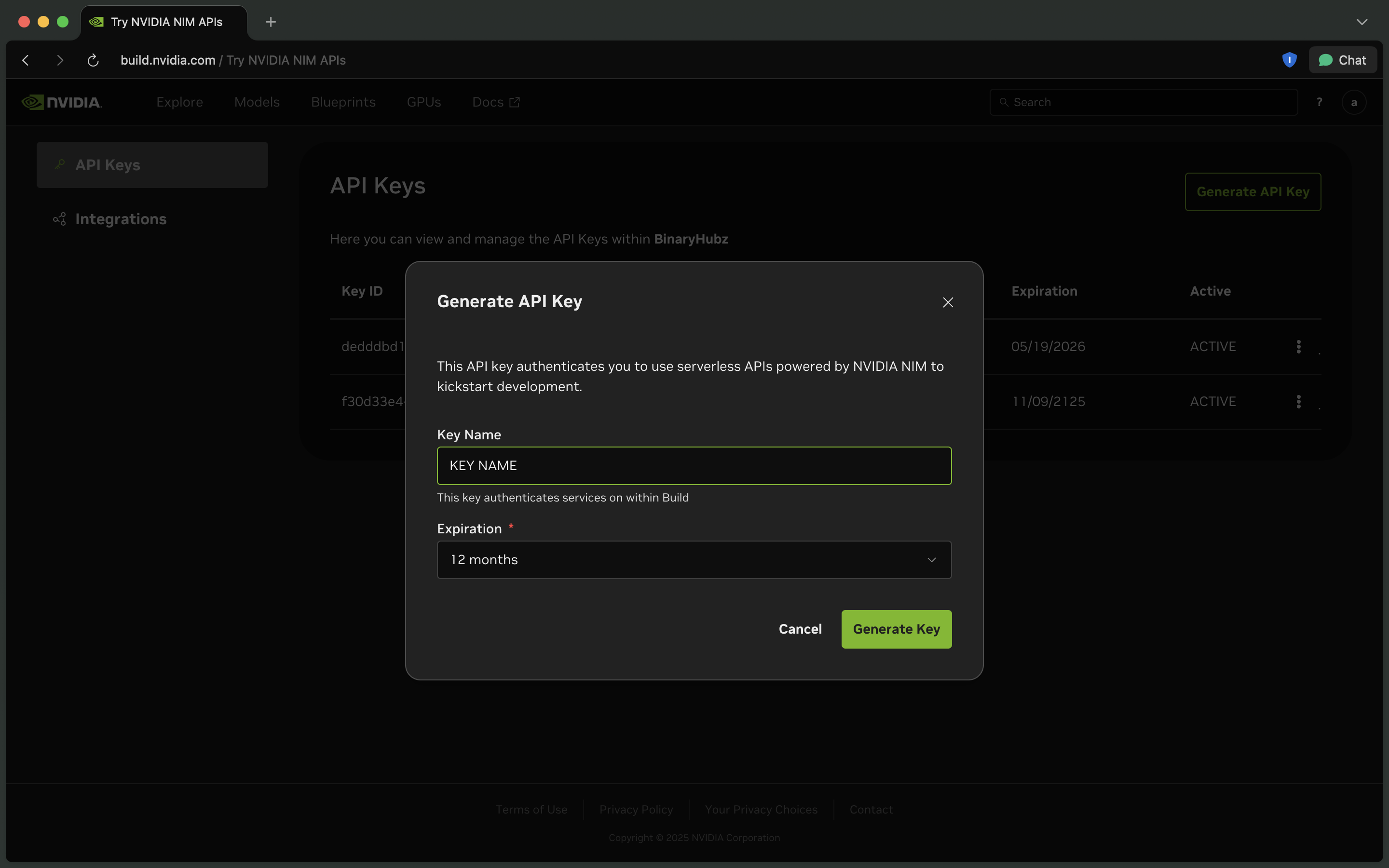
To access Kimi K2, visit NVIDIA Build and retrieve:
- API URL
- API Key
- Model Name
⚠️ You need an NVIDIA account and must be logged in to generate your API credentials.
Here’s what the process looks like:
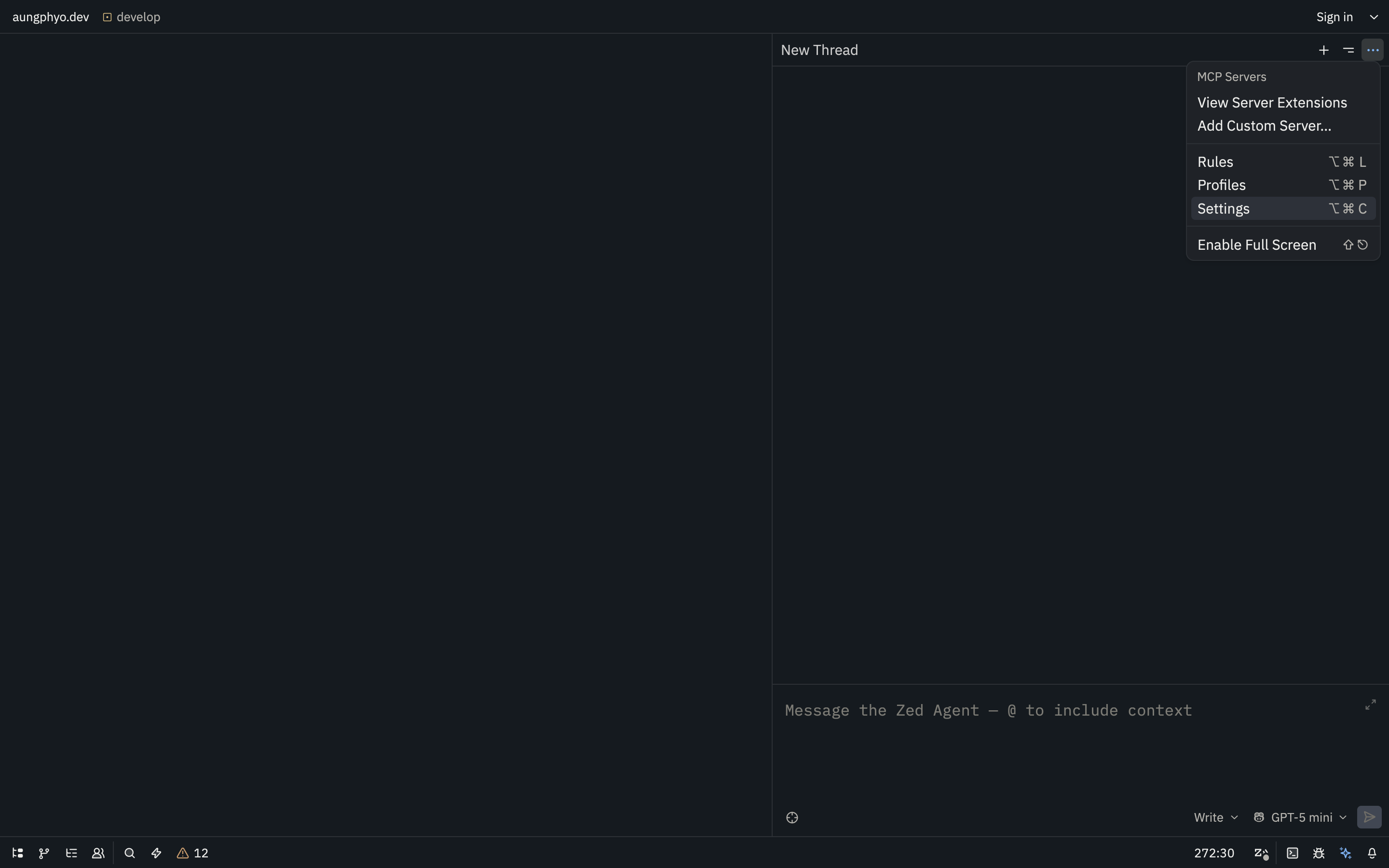
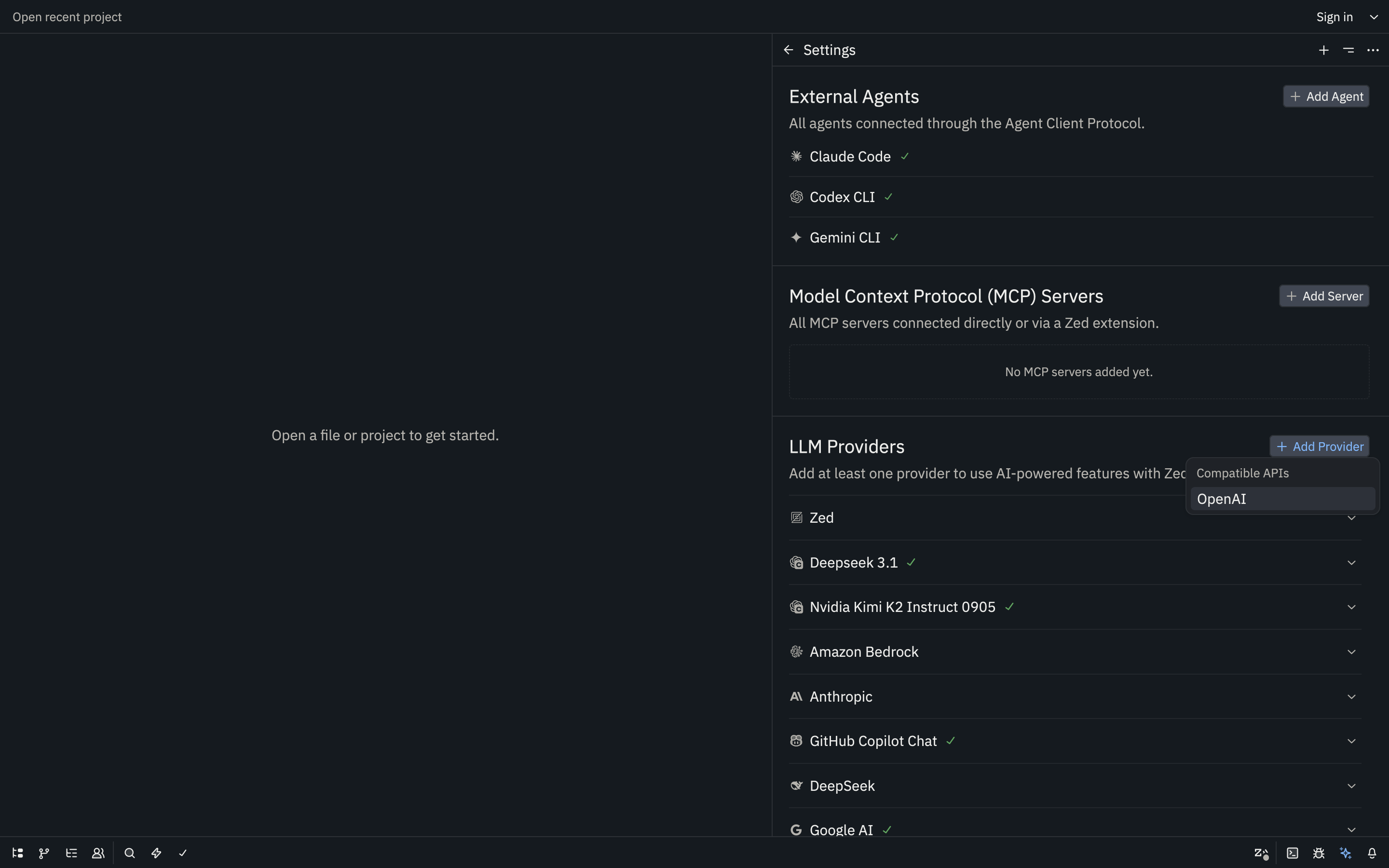
3. Configure Kimi K2 in Zed
Once you have your API credentials, configure Kimi K2 within Zed to start using it:
That’s it! 🎉 You’re now ready to supercharge your development workflow with Zed and Kimi K2. By combining Zed’s high-performance editor with Kimi K2’s AI capabilities, you can write code faster, smarter, and more efficiently than ever.